It has been almost 2 years since my last update here. I am now back and will start with new and interesting topics. If anyone of you have questions or topics you want me to discuss, please comment below and I shall see what I can do. ;-)
My area of interest right now is giving first how to design an "adaptive" security infra with regards to the dynamic business requirements nowadays.
Monday, April 25, 2016

Friday, June 27, 2014
McAfee Next Generation Firewall (Stonesoft): Load balancing and QoS using Multi-Link
Overview
McAfee Multi-Link is a very useful feature for organization that need reliable and scalable internet connection. It's reliable since it allows user to have seamless internet connectivity during downtime of their primary ISP. It is scable since organization can easily add a new ISP over their existing without downtime.
The following videos will show you how to configure Multi-Link in various requirements
Note: For diagram, kindly reference to this post: http://nidofortified.blogspot.com/2014/06/configuring-mcafee-next-generation.html
Note: For diagram, kindly reference to this post: http://nidofortified.blogspot.com/2014/06/configuring-mcafee-next-generation.html
Requirement 1: I want to make sure all High Priority traffic to pass on my ISP with larger bandwidth
In this video, I will show you how to use Multi-Link ratio mode with QoS.
I change my ISP A netlink bandwidth information from 100kbps into 300kbps
After security engine refresh, notice now that the NAT source IP change.
Requirement 2: I want to use QoS on my firewall policy
If you want to make sure that specific rule is being route on your most reliable or larger pipe ISP,
Make sure first that you applied QoS on your rule.
After that. Modify your Multi-Link to choose which ISP will handle your QoS.
Refresh security engine and verify it on your log viewer.
So that's it for now, if you have any question or have requirements you need to check if NGFW can support, just leave a comment. :-)
Thursday, June 19, 2014
Configuring McAfee Next Generation Firewall (Stonesoft) Multi-Link Feature
Overview
Multi-Link is a unique feature for McAfee NGFW. It helps organization reduce cost from buying large bandwidth from ISP. This is done by combining multiple ISP to create a single route for all network traffic.Aside from reducing cost, it also improves reliability for organization that needs 24/7 operations since its capable enough to switch automatically on active/best ISP link.
Multi-Link also enables organization to have augmented VPN which again help improve operations and reliability.
Last, but not the least, Multi-Link can also be use for inbound traffic. So for example, you can have multiple link/route going to your web server to avoid service downtime for external users/costumers.
For more info, visit McAfee NGFW site here: http://www.mcafee.com/us/products/network-security/next-generation-firewall-technologies/multi-link.aspx
Configuration
Configuring Multi-Link is very simple, you will just need typically a multiple ISP connection and a popcorn (yes a popcorn, watching the logs as being load balance by NGFW by default :-) )For this tutorial, my environment will have 2 ISP. ISP A will have 50kbps UP and 100kbps DOWN while ISP B will have 100kbps UP and 200kbps DOWN but has 1 extra hop before reaching the internet.

Now that you have an idea about my test environment, let's proceed for the configuration.
Step 1: Configure Physical Interface IP

Step 2: Configure NetLinks

Just like adding normal static route, right click on the interface network and choose New -> Static Netlink (as shown below)

Note: There are two types of Netlink. Static and Dynamic, what they do will be discuss on separate tutorial.

A pop-up window will show for NetLink configuration.
Name - The unique name for this NetLink
Gateway - The next-hop IP address (Mostly your ISP router IP)
Network - The network segment given/assigned by your ISP
Probing settings - Useful for identifying active links and measuring the speed of each link.
Note: When adding IP address for probing, it is recommended to put IP address from external server instead of using the ISP router address (i.e. ISP router connection is not reliable since during downtime, you can still probably ping your ISP but does not have internet connection)
Input speed - The incoming bandwidth speed of this ISP
Output speed - The outgoing bandwidth speed for this ISP
Note: Placing a speed is mandatory if you need to configure QoS/load balancing
Click Ok then repeat steps in creating another NetLink for ISP B.
Below is an example of a complete NetLink configuration

Step 3: Creating Outbound Multi-Link

Select Outbound Multi-Link

Add the NetLink created for each ISP

From the NetLink Member window, provide the IP range that can be use by Multi-Link. The above shows that I only want single IP address to be use by my firewall. Leave QoS blank for now and click Ok.
Step 4: Creating NAT Rule

With this rule, it is saying that any outgoing connection will use either of the two ISP connection.
Step 5: Test Configuration
Start browsing and view the logs from SMC. You will notice here that the outgoing traffic is being NATed by different external IP of the firewall.
And that's it! You now have Multi-Link enabled for Outbound traffic.
I will update again this post to show you how I configured NGFW to solve the following scenario. Should you have request for certain scenario, do leave your comment. :-)
Update 1:
I combined Scenario A and B to this single post: Advance Setting for McAfee NGFW Multi-Link
Sunday, June 1, 2014
Suricata with Logstash - Part 3: Setup and Configure Logstash
Pre-Installation Requirements
DependenciesThe following are what I need to install when I use Ubuntu 10.04 as my host. Check first on your system if you have this already.
Java 6 and later
Make sure you have the Java installed on your system, if none, the following will help you install on your Ubuntu:
Geo-Location
To make Suricata provide Geo-Location on its dashboard, this will help you achieve it
Download Logstash
Setup and Configure Logstash
Create a logstash conf file
Insert the following on the conf file
Configure Suricata
Edit your suricata.yaml to accept JSON eventsRun
I like logstash to run on its own terminal since I can be sure that logs and other information can be seen immediately.This can be done by triggering the following:
Below is what you should see when logstash run's successfully

Access
You can access the Logstash using any browser
What's next?
Now that you have Suricata with Logstash running on your system, the next part is doing some fine tune to make sure that you can see the important events only.Aside from that, we will create our own dashboard in Logstash since the default one included are just plain log viewer.
If you really plan to use this on your enterprise network, I suggest you include the Emerging Threat rules so that you will have more signature detection.
For the latest version of using Logstash for Suricata, you may always visit this link: Suricata Official Site
Saturday, May 31, 2014
Suricata with Logstash - Part 2: Setup and Configure Suricata
Pre-installation requirements
For Ubuntu 10.04 LTS and later, install the packages below to support IDS and IPS function on Suricata.
Note: If you don't plant to use Suricata in IPS mode, you may remove Download Suricata
Download Suricata (latest version as of writing is 2.0.1)
Once downloaded, extract and navigate to the folder.
Compile
For IDS Mode:
For IPS Mode:
Start building by triggering the following commands:
For IPS Mode:
Start building by triggering the following commands:
Test
To make sure Suricata is properly installed, run Suricata by:Replace the
A similar message should show that Suricata is running successfully:

View the real-time events by:
Below is a sample how the real-time logging should look like:

http.log

stats.log
What's next?
Now that you have running Suricata, the next part is viewing all those events visually. :-)Wednesday, May 28, 2014
Configuring McAfee NGFW (Stonesoft) Client to Site VPN (using Stonesoft IPSec VPN Client): Configuring VPN NAT Pool based client-to-site VPN
Overview
Stonesoft IPSec VPN in NAT Pool is an alternate of allowing remote users to establish VPN connection. This configuration does not require external DHCP server to provide IP for remote users.
The disadvantage of using this configuration is the manual setup of DNS server on the remote user.
Requirements
McAfee NGFW 5.5 and later
McAfee Security Management Center (SMC) 5.7
Stonesoft IPSec VPN Client 5.4 or later
Procedures
-
Log-on to McAfee SMC
-
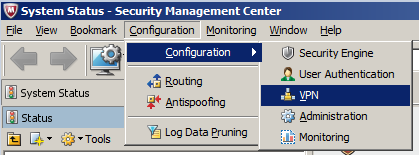
Go to Configuration -> Configuration -> VPN
-
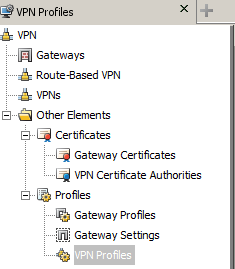
Create a new VPN Profile by going to Other Elements -> Profiles -> VPN Profiles
Then Right-Click on VPN Profiles to choose New VPN Profile
-
On the new window, configure the following: (You may change the following depending on your security requirements)

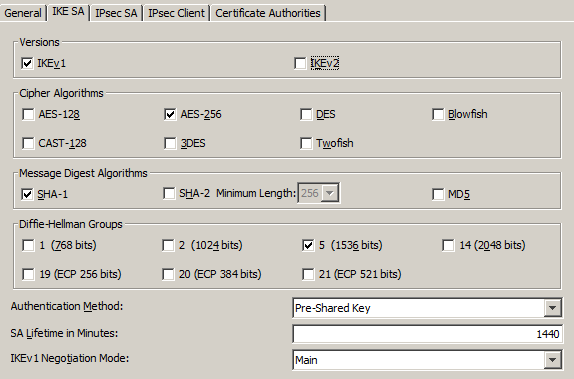
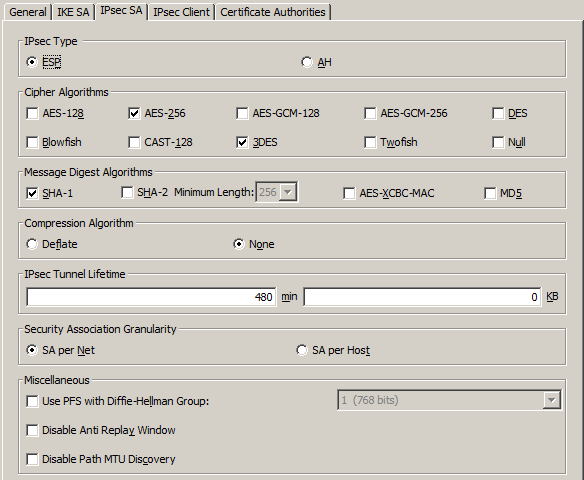

Then click Ok
-
Create a new VPN configuration, right-click on VPNs then choose New VPN
Choose the VPN Profile that was created earlier
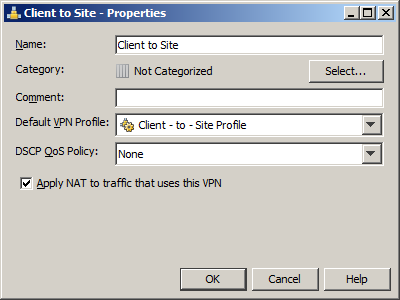 Make sure to enable the checkbox when configuring VPN for NAT Pool
-
On the Edit view for the VPN configuration,
Add the default IPSec Client on the Satellite Gateways
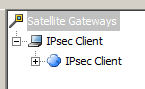
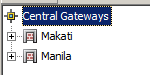
Create a new Internal VPN Gateway for the Central Gateways
Select the Security Engine (Firewall) that will be access by the remote users

Select the public (external) IP address that will be handling the VPN session

Uncheck the “Include and update addresses based on routing” since this will allow any remote user to access any network
If the VPN rule are not configured properly.
Add the network segment that you will be allowing network user to access.

Click Ok.
You may add multiple internal gateway if you manage multiple NGFW
-
Set IP range that can be used by the remote users.
Go to NGFW properties, Advanced tab then click VPN Settings button.
Check the “Translated IP Addresses”, place the IP range and port range (from 1024 to 65535)
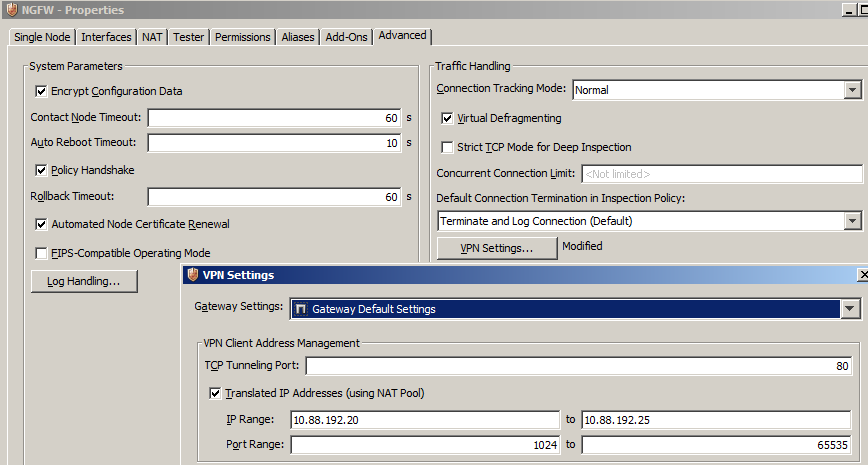
Click Ok.
-
Create VPN users account locally on the firewall
Go to Configuration -> Configuration -> User Authentication
To create a new local user account, expand Users then choose InternalDomain
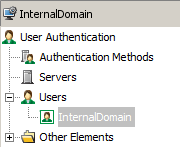
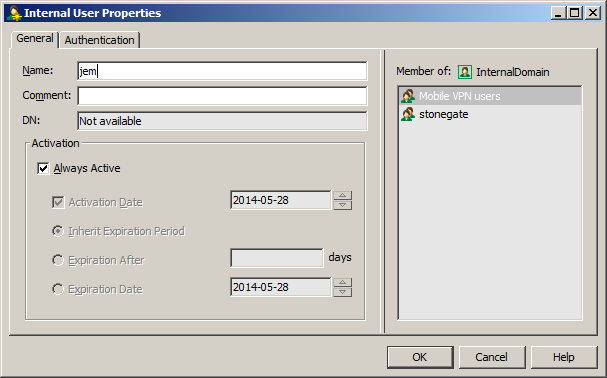
Expand stonegate domain then create a new user under Mobile VPN user
Input username on the Name field, modify the Activation based on your requirement.
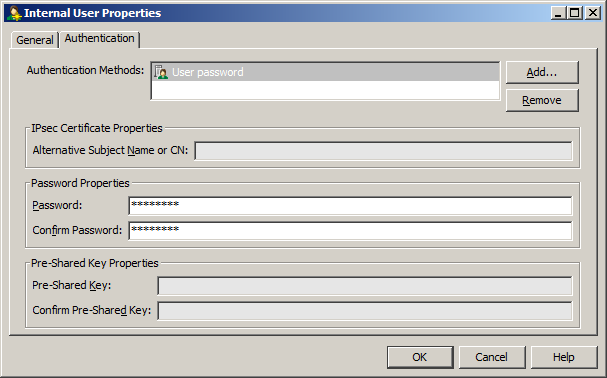
Set user authentication as User password then initialize the user’s password (take note of this so you can send it to the user afterwards)
A successful user authentication will show the following

-
Create a new rule on your current Firewall Policy that will have the following configuration
Source IP: Any
Destination IP: 
-
Upload the rule to your firewall
-
Test your VPN setting by connecting via Stonesoft VPN client
Input the public IP of the firewall that will accept VPN connection
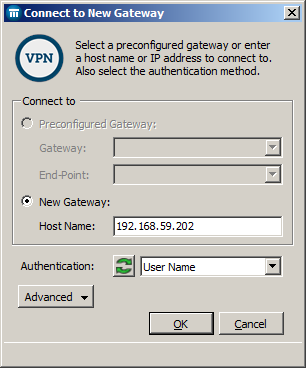
Successful connection will prompt user authentication dialog
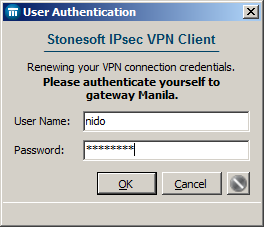
Successful authentication will establish connection

You should now able to access the server/workstation behind the firewall
Note: Unlike other IPSec VPN client, Stonesoft’s client will not disconnect your internet connection or will reconfigure the IP address of your network interface. So while you can access the internal network, you may still continue to access the Internet.
Overview
Stonesoft IPSec VPN in NAT Pool is an alternate of allowing remote users to establish VPN connection. This configuration does not require external DHCP server to provide IP for remote users.
The disadvantage of using this configuration is the manual setup of DNS server on the remote user.
Requirements
McAfee NGFW 5.5 and later
McAfee Security Management Center (SMC) 5.7
Stonesoft IPSec VPN Client 5.4 or later
Procedures
- Log-on to McAfee SMC
- Go to Configuration -> Configuration -> VPN
- Create a new VPN Profile by going to Other Elements -> Profiles -> VPN Profiles
Then Right-Click on VPN Profiles to choose New VPN Profile
- On the new window, configure the following: (You may change the following depending on your security requirements)
Then click Ok
- Create a new VPN configuration, right-click on VPNs then choose New VPN
Choose the VPN Profile that was created earlier
Make sure to enable the checkbox when configuring VPN for NAT Pool
- On the Edit view for the VPN configuration,
Add the default IPSec Client on the Satellite Gateways
Create a new Internal VPN Gateway for the Central Gateways
Select the Security Engine (Firewall) that will be access by the remote users
Select the public (external) IP address that will be handling the VPN session
Uncheck the “Include and update addresses based on routing” since this will allow any remote user to access any network
If the VPN rule are not configured properly.
Add the network segment that you will be allowing network user to access.
Click Ok.
You may add multiple internal gateway if you manage multiple NGFW
- Set IP range that can be used by the remote users.
Go to NGFW properties, Advanced tab then click VPN Settings button.
Check the “Translated IP Addresses”, place the IP range and port range (from 1024 to 65535)
Click Ok.
- Create VPN users account locally on the firewall
Go to Configuration -> Configuration -> User Authentication
To create a new local user account, expand Users then choose InternalDomain
Expand stonegate domain then create a new user under Mobile VPN user
Input username on the Name field, modify the Activation based on your requirement.
Set user authentication as User password then initialize the user’s password (take note of this so you can send it to the user afterwards)
A successful user authentication will show the following
- Create a new rule on your current Firewall Policy that will have the following configuration
Source IP: Any
Destination IP:
Service: Any
Action: Enforce VPN: Client to Site
Authentication: Select Authorize Client IP, Select the Group where the VPN users are stored, Choose the authentication type being use by the user
- Upload the rule to your firewall
- Test your VPN setting by connecting via Stonesoft VPN client
Input the public IP of the firewall that will accept VPN connection
Successful connection will prompt user authentication dialog
Successful authentication will establish connection
You should now able to access the server/workstation behind the firewall
Note: Unlike other IPSec VPN client, Stonesoft’s client will not disconnect your internet connection or will reconfigure the IP address of your network interface. So while you can access the internal network, you may still continue to access the Internet.
Thursday, May 1, 2014
Suricata with Logstash - Part 1: Planning and installation
IDS or IPS?
Before you start testing Suricata, understand first what will you need. If you are new or does not have knowledge the difference between an IPS and IDS. Let me give you a brief background below. If you are an advance user then you may skip this and move to Part 2: Setup and Configure Suricata
What is an IDS?
IDS stands for Intrusion Detection System. Like its name, the main role of this security device is to detect threats passing on your network. Nowadays, IDS uses different kind of method to detect and identify threats. It use signature based detection which vendor always provide an update, it may also use a behavioral detection (signature less) so that it may identify an unknown threat. This are the two most common feature it has, depending on the vendor, they may introduce other or more advance features of detecting threats.
IDS is deployed usually in one arm (using SPAN port or TAP) to detect threats on the network. It may also be deployed in-line (between two network device. i.e. firewall and core switch).
What is an IPS?
IPS stands for Intrusion Prevention System. This security device have capability to react when a threat was detected on the network, unlike IDS which usually has SYN reset feature most of the time. IPS can definitely block, drop or quarantine malicious traffic. In terms of deployment, an IPS requires to be deployed in-line since that is the only way it can stop the traffic passing through.
Unlike IDS (appliance or mode), IPS will require higher server/appliance that is capable of handling the whole network throughput. When dealing with encrypted traffic, this will require more CPU resources to decrypt and analyze.
- Your all ingress and egress point (where the traffic goes in and goes out)
- The zone you want to protect (DMZ, Internal and etc...)
- The total throughput of each zone (say, DMZ has 10 servers with each has 10Gbps and Internal has 1Gbps traffic)
- Type of interface the other network device have
- High Availability setup (since placing a device in-line will become a single point of failure)
Below is an example how in-line is placed.

Pros:
- Able to do actions on the malicious traffic
- Can identify source and destination more accurately
- Does not need much configuration on other network devices (i.e. router or switch)
Cons:
- Single point of failure if not implemented properly
- Expensive
- Continuous monitoring
- Requires a lot of interface if need to monitor different segments
When deploying in this mode, take note of the following requirements:
- Need to place a TAP device (for TAP mode)
- Need to add SPAN configuration on one of the network device interface
- Review any security settings on the network device (i.e. MAC address filtering)
- If VLAN is being use for different zone/department, admin must know which one to include on the SPAN configuration

Pros:
- Cheap
- Not a single point of failure
- Faster to deploy
Cons:
- Limited views on the attack
- Limited actions on the attack
- Not very accurate on the source and destination address
move toPart 2
Unlike IDS (appliance or mode), IPS will require higher server/appliance that is capable of handling the whole network throughput. When dealing with encrypted traffic, this will require more CPU resources to decrypt and analyze.
Deployment option
When deploying an IPS/IDS there are things you or each organization need to consider. One may start looking on how other organization implement it on their environment. And from that they may evaluate if they can also apply it to them. But take note, there are cons and pros on each type of deployment.In-line mode
When deploying in in-line, understand first this thing in your organization, like:- Your all ingress and egress point (where the traffic goes in and goes out)
- The zone you want to protect (DMZ, Internal and etc...)
- The total throughput of each zone (say, DMZ has 10 servers with each has 10Gbps and Internal has 1Gbps traffic)
- Type of interface the other network device have
- High Availability setup (since placing a device in-line will become a single point of failure)
Below is an example how in-line is placed.
Pros:
- Able to do actions on the malicious traffic
- Can identify source and destination more accurately
- Does not need much configuration on other network devices (i.e. router or switch)
Cons:
- Single point of failure if not implemented properly
- Expensive
- Continuous monitoring
- Requires a lot of interface if need to monitor different segments
TAP / SPAN mode
When deploying in this mode, take note of the following requirements:
- Need to place a TAP device (for TAP mode)
- Need to add SPAN configuration on one of the network device interface
- Review any security settings on the network device (i.e. MAC address filtering)
- If VLAN is being use for different zone/department, admin must know which one to include on the SPAN configuration
Pros:
- Cheap
- Not a single point of failure
- Faster to deploy
Cons:
- Limited views on the attack
- Limited actions on the attack
- Not very accurate on the source and destination address
Suricata Implementation
Suricata support both In-Line and SPAN mode configuration. If you decide to do In-line, then you require at least 2 NIC on your hardware. For this tutorial, I'm just covering for now the SPAN mode since I only want to do IDS for Suricata.move to
Wednesday, March 5, 2014
Open Source IDS/IPS With Real Time Log Monitoring: Suricata and Logstash
Background
Last week, I was trying to learn more about McAfee's Network Security Platform. It is one of the best network security solution available in the market. Simple, yet powerful and has a wide array of appliance that will fit to any size or requirement by their customer.As the title say, this post is not about McAfee NSP. I wrote this post to share my experience in setting up an IDS/IPS appliance for home (or even for SMB) use. Why I did this? Simple, I was curious what kind of attacks or traffic found in an ordinary user. Since nowadays, we are in a digital world and most of us are doing transactions online. How safe are we doing it? Also, how about if my workstation is infected with malware, how does it behave on my network?
Going open source!
Since of course I cannot afford buying my own Network IPS or even if I do, I cannot run it for a day due to expensive electricity. I end up searching for an open source solution. Lucky for me, I found Suricata! Suricata is an open source IDS/IPS and even NSM engine that runs on multiple platform. (Homepage: http://suricata-ids.org/) It officially supports the following:- Ubuntu
- Debian
- CentOS
- Fedora
- FreeBSD
- Mac OS
- Windows
You can also compile your own if you are using other platform.
Setting it up!
For this tutorial, I am using Ubuntu 10.04 LTS as my platform. There is a precompiled version of Suricata for Ubuntu, but in my case, I compiled my own binary for the sake of learning.Suricata does not come its own dashboard for viewing alert or event logs. Good thing, we have logstash that fully supports the log it generates. (logstash: http://logstash.net/) which will be cover also in this tutorial. :-)
There will be 4 part for this tutorial:
Part 1: Planning and installation
Part 2: Setup and Configure Suricata
Part 3: Setup and Configure Logstash
Part 4: Fine tuning
At the end of this tutorial, you should have a similar dashboard like this:

Nice huh? :) Stay tune for the tutorial or if you are the kind of person who really want to setup this then I recommend you visit Suricata website and read their basic tutorial. Until then, good day!
Saturday, February 22, 2014
Using McAfee Firewall Enterprise Application Control - Case Study: Why using HTTP.Tunnel work before and now it won't after the MFE application DB update?
What is HTTP Tunnel?
HTTP Tunnel is not HTTPS; it is a separate program used to
tunnel non-HTTP traffic over HTTP use by individual or
corporation to tunnel network connections using HTTP/s to bypass filtering by
firewall. Think of it as an anonymizer programs that user can use in order to
have internet access on a restrictive environment. The difference is, this can
be use by developers to integrate it on their application.
Because this is treated as an actual application (and not a
tunneling "protocol" like SSL/TLS), MFE Application DB has its
"signature" stored so that it can quickly identify and do action when
it recognize that the traffic passing on the network originate from an HTTP
Tunnel application (This applies to other application as well)
So why can you access
the internet or web server when using HTTP.Tunnel, is MFE broken?
When you access a certain website (internet or intranet),
MFE scan the traffic passing on it. Since it evaluated that the site is not a
web application or a known application (e.g. 4Shared, Dropbox, or Google Drive)
MFE will flag it as a normal HTTP or an HTTPS traffic because it is using port
80 and 443. The risk here is, it will work 50-50. When MFE detects that the
traffic shares a similarity on one of its application signature (especially
after application DB update), the traffic will be drop since only HTTP.Tunnel
is allowed.
 |
When accessing an
internal site, it is recommended to use a similar policy shown on the right
since it's telling that all traffic going on that server is an HTTP/s request
and it's a trusted site already.
|
As a proof, you can try using other application signature
that utilize HTTP(80) and SSL/TLS(443) to browse the internet and it will work,
but browse on a known application signature, it will be drop.
What is the correct
application to use?
The answer is, use HTTP and SSL/TLS application (or custom
application/port) to handle traffic
going to a specific website or web server (webmail, web portal and so on..) As
an example, below are the different scenario wherein a comparison of each audit
log on MFE when using HTTP tunnel and the combination of HTTP and SSL/TLS
For
the purpose of this example, the website that's being trying to access is
Dropbox
Scenario 1: Enabled Application Discovery on internet and
internal zone, then use HTTP and SSL/TLS application on the policy
 |
| Fig. 1 |
 |
| Fig 2 |
Figure 1 shows audit report is clean of alerts and errors.
With the help of application discovery, MFE can properly identify that the
website is Dropbox. While on Figure 2, it shows that this traffic is passing on
port 443 and its allowed
Scenario 2: Enabled Application Discovery on internet and
internal zone, then use HTTP.Tunnel application on the policy
 |
| Fig 3 |
 |
| Fig 4 |
Figure 3 shows that there are multiple attacks detected by
MFE since it doesn't match any current policy it has. And this can be further
analyze on Figure 4 which shows that this traffic passing on port 443 is a
policy violation because it only allows HTTP.Tunnel application.
Scenario 3: Disabled Application Discovery on internet
and internal zone, then use HTTP and SSL/TLS application on the policy
 |
| Fig 5 |
 |
| Fig 6 |
Figure 5 shows a similar clean audit logs like in Figure 1,
the difference is, MFE tag the application field as a generic HTTPS traffic
rather than Dropbox.
Scenario 3: Disabled Application Discovery on internet
and internal zone, then use HTTP.Tunnel application on the policy
 |
| Fig 7 |
 |
| Fig 8 |
Figure 7 shows a similar audit log with Figure 3, it
contains a lot of attack and alert events because of the wrong application
being use on the policy. The interesting part on this scenario is that, even
though application discovery is disabled, MFE is able to tag this as Dropbox.
This further prove that MFE do scan the traffic passing on it to check if it
matches on any signature it currently has.
Closing Remarks
When creating a policy, identify what kind of service will
the destination address will offer. This is very important to have not just a
good list of firewall policy, but also a clean and understood one.
Enabling Application
Discovery on the MFE zone is good approach since it will able to identify
traffic better.
If you have questions or other inquiry, please feel free to leave your comment and I will response as quick as possible. Until then, take care!
Saturday, November 2, 2013
Slow DNS causing slow internet access
Overview
Last week, one of my client reported that their users were experiencing slow internet access even on non peak hours. For them, this is because there was a problem on our proxy solution provided (McAfee Web Gateway). I don't buy that. So what I did is to gather info first (like what a good IT guy would do) and then analyze each.After some hour analyzing the result, it turns out that the culprit was their internal DNS! It seems their internal DNS is very slow in resolving each request sent by our proxy solution. This make user browsing experience very sloowwww. :(
Wednesday, October 23, 2013
Stonesoft, new McAfee family member!
So today, I was very excited to try what Stonesoft can offer. As everyone knows (or not) Stonesoft was recently acquired by McAfee (McAfee Press Release), with this move, it helps McAfee delivers NGFW and NGIPS to the global demand of network security solution.
Long story short, I'm very familiar with McAfee's current firewall solution which named McAfee Firewall Enterprise (MFE). This firewall is based on previously known Sidewinder firewall (which was acquired by
Long story short, I'm very familiar with McAfee's current firewall solution which named McAfee Firewall Enterprise (MFE). This firewall is based on previously known Sidewinder firewall (which was acquired by
Subscribe to:
Posts (Atom)